Posts

Showing posts with the label networking

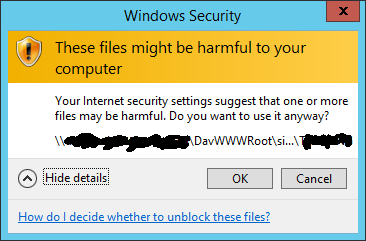
Harmful warning when copying/moving between webdav sites and libraries
Image
Problem Sometimes, when copying or moving documents between mapped libraries in SharePoint (whether they are network drives or just opened temporarily) we get the Windows Security warning: "These files might be harmful to your computer". This message is specially strange since the site already belongs to the Local Intranet Zone . Solution What we need to do is add the path "\\your-sharepoint-site" to the local intranet zone, save and log off and re-sign in. Internally, this change will add a file entry to the zones in the registry. Therefore, a way to perform this trough a .reg file, is: Windows Registry Editor Version 5.00 [HKEY_CURRENT_USER\Software\Policies\Microsoft\Windows\CurrentVersion\Internet Settings\ZoneMap\Domains\domain.com\*.subdomain] "http"=dword:00000001 "https"=dword:00000001 "file"=dword:00000001 After adding this key and signing off or restarting, the warning no longer appears.

Filezilla not working through shared network

Image
Problem: FileZilla does not connect to servers while connected through shared network. From Windows Firewall Logs we can find, 2013-11-01 12:28:04 DROP TCP 192.168.137.23 192.168.137.1 51759 42360 52 S 3851669901 0 8192 - - - RECEIVE Which means that an attempt, from another computer in the network was made over the gateway (the current computer) in order to contact *some* remote location over TCP and the connection was refused locally. This means we will need an Inbound Rule, in order to allow the network machine to access this gateway by TCP. Solution: Deactivate Windows Firewall or add an Inbound Rule. In order to avoid setting the system to an unprotected state, do the following to add a rule exception. 1) Go to Windows Firewall, Advanced 2) Right-click "Inbound Rules", "New Rule" 3) Click "Custom" and hit Next 4) Choose "All Programs" and hit Next 5) Set TCP as your protocol type and hit Next 6) For "local IP add...

Create a sharable WiFi ad-hoc network using Windows7/8

Problem: Create a sharable WiFi ad-hoc network using Windows7/8 Solution: Use netsh command: netsh wlan set hostednetwork mode=allow ssid=myCustomNetworkName key=my@password netsh wlan start hostednetwork Tips: - Place these lines in a .bat file so you can right-click and run whenever you start your computer and want to start the shared network - Make sure you edit the properties of the network that connects to internet and enable Internet Connection Sharing to the newly created network Source: http://www.addictivetips.com/windows-tips/how-to-create-wireless-ad-hoc-internet-connection-in-windows-8/

C# | Get My REAL External Public IP Address (not 127 or 192 stuff)

Yes, there is a way. No 127.0.0.1 or 192.168.0.1 stuff. Contact whatsmyip.com and they'll tell you! public static IPAddress GetExternalIp() { string whatIsMyIp = "http://automation.whatismyip.com/n09230945.asp"; WebClient wc = new WebClient(); UTF8Encoding utf8 = new UTF8Encoding(); string requestHtml = ""; try { requestHtml = utf8.GetString(wc.DownloadData(whatIsMyIp)); } catch (WebException we) { // do something with exception Console.Write(we.ToString()); } IPAddress externalIp = IPAddress.Parse(requestHtml); return externalIp; } Thanks to this guys at dreamincode.net http://www.dreamincode.net/forums/topic/24692-showing-the-external-ip-address-in-c%23/ Update: The function appears to return the server IP address. How to get both CLIENT and SERVER public IP Addresses? string serverIP = GetExternalIp().ToStr...

CCNA Cheat Sheet

My own precious learning sheet for all those CCNA alumni and anyone else who wants to take a helicopter view at CCNA CCNA_Cheat_Sheet.pdf Check PacketLife.net for some stunning cheat sheets

Remote Desktop in W95/W98

http://msdn.microsoft.com/en-us/library/aa728832(VS.71).aspx

MSN Messenger messages not delivered in routed network

For months I've had this same issue: Windows Live Messenger fails to deliver some messages without ANY warning of failure. After lots of troubleshooting, I've decided to foward port 1863 to the WIFI router that is directly connected to the internet access modem router and what do you know, it worked! Turns out some of the messages we lost in the first router. Since there are two separate networks (the WAN and the DHCP internal private network), sometimes packets just didn't know where to go. Modem Router Network: 192.168.1.254 WiFi Router Nework: 192.168.1.1 (WAN) / 192.168.2.1 (LAN) TCP Port: 1863 Forward to 192.168.1.1

VPN connection shuts down internet access

Image
Connecting through a VPN tunneled connection stops you from opening web sites or using msn messenger? Fear not, you're troubled days are gone. Just disable default gateway / default router on the connection settings: Just make sure you won't need it to access any resources! Credits for these guys at velocity news forum http://www.velocityreviews.com/forums/t29443-cannot-access-internet-while-connected-thru-vpn.html

stop all shares

make sure no folders are available for network users to mess up with your computer 1. turn off all network options 2. turn off shares from all folders (\\my_computer_name to check) 3. stop sharing printers 4. stop "Remote Registry" service for turning off sharing for scheduled tasks 5. turn off sharing for folder C:\Windows\system32\spool\PRINTERS (print$)

activate/deactivate teredo in vista

out netsh interface teredo set state disabled in netsh interface teredo set state client teredo.ipv6.microsoft.com 30 0 check netsh interface ipv6 show teredo

Too many wireless network ip leases

My laptop starting to take alot of ip addresses: [computername] new-host-1 new-host-2 ... new-host-11 After a lot of googling, binging, and service management, I decided to remove VMWare services, VirtualPC services and IPv6 from the wireless network adapter. Also had set up a static ip address in the router for my laptop name/mac just in case. Seems to have worked for me.